Warning: If you do not follow these instructions there is a high chance that the work will be lost and will not be counted towards your assessment, please follow!
When you create a document immediately save it to avoid loss, to save follow the below instructions.
1). In the top left of the office program you are using Press “File”
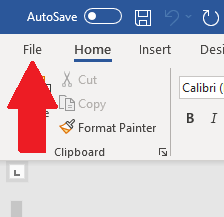

2). In the blue bar on the left that appears after pressing file Press “Save as”.
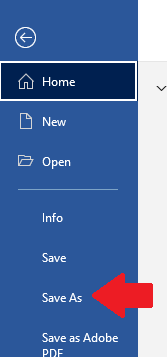
3). On the left-hand side press “Browse” and a popup will appear.
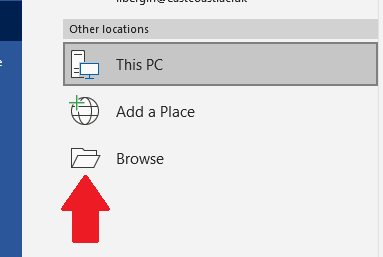
4). On this popup press “Documents” on the left-hand side, it is important that this is done otherwise it will likely be lost anywhere else.
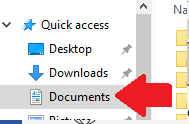
5). In the save popup Give your task an appropriate name e.g. Unit name – Student number like shown below and then press “Save”.
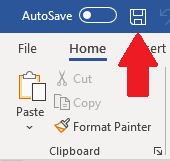
Make sure to press the “Save” button at the top left as you write every 10 minutes minimum.
Was this article helpful?
That’s Great!
Thank you for your feedback
Sorry! We couldn't be helpful
Thank you for your feedback
Feedback sent
We appreciate your effort and will try to fix the article