This step is for download a copy of the user's emails.
Microsoft like to change things with Content Search all the time, so please update this guide in the future with the upto date info
Step 1:
Microsoft Purview > Solutions > eDiscovery > Create case
Name the case something easy to find, eg Staff Archiving, once the name has been entered, click Create.
Step 2:
Once the case has been created, create a search for the users in the spreadsheet, to do this go:
Create a search > enter a name, eg the numbers in the spreadsheet, so 1-7 for example
Recommended amount of users to select is 8-10 at a time, otherwise the search & export will take a long time to process & could crash/ get stuck.
Step 3:
Now click Add sources & in the search box, enter the username of the users in the spreadsheet
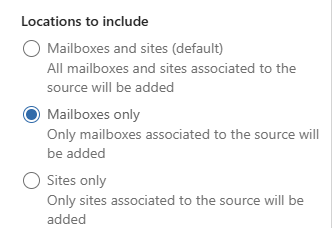
In the locations to include section, select Mailboxes only:
Step 4:
Once the usernames have been entered, click Save and Close.
Once saved, then click Run query > Run query, this will do a search for any & all emails in the accounts in the list from step 3.
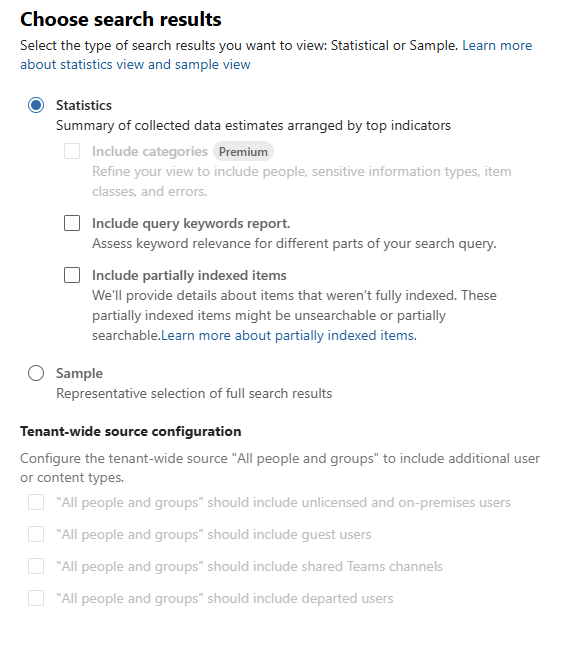
You can leave the "choose search results" section as is as per below:
Now Purview will begin the search, this may take a while, depending on how many users & the size of the mailboxes.
Step 5:
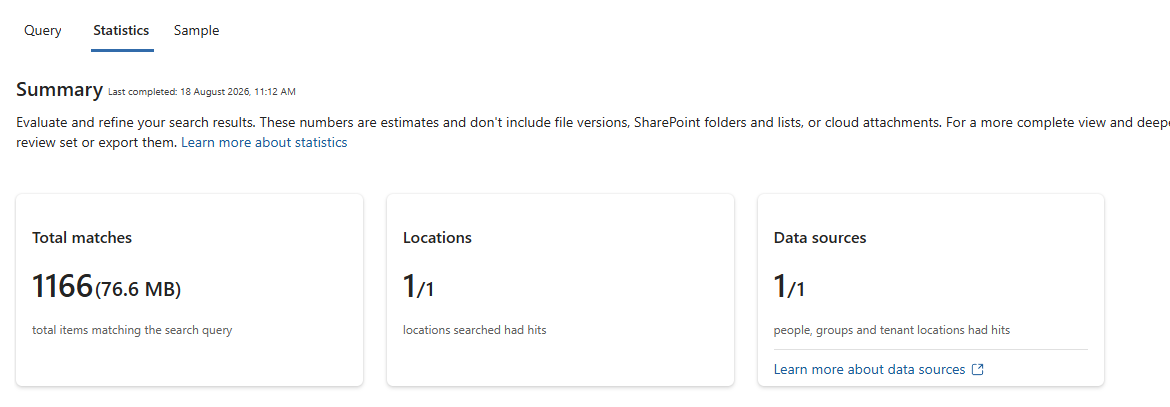
Once the search has completed, you'll know as the summary will be filled out with information as per below:
Step 6:
Click Export > enter a export name > only change the following options:
Max PST package size - 10GB (5GB by default)
Max ZIP package size - 20GB (10GB by default)
Untick Give each item a friendly name
Once filled out, click Export to start the export process.
Step 7:
Go to Process manager to check on the status of the export.
Once it's completed, you can download the ZIP file, you only need the "PSTs" ZIP file, so untick anything else, once done click the Download button
Step 8:
Once downloaded, extract the ZIP file.
Once extracted go into the Exchange subfolder & you will see the PST files for the users in the search.
Copy these into the user's folder on the Archive Area
Was this article helpful?
That’s Great!
Thank you for your feedback
Sorry! We couldn't be helpful
Thank you for your feedback
Feedback sent
We appreciate your effort and will try to fix the article